
Quick save · key takeaways
- Desktop PCs should use the desktop images, not the deck images.
- Set refresh rate, VRR and scaling on day one.
- Give games a Linux-formatted drive and add it as a Steam library.
- Restart regularly so staged updates take effect.
Bazzite earns most of its attention on handhelds, but a large share of its users run it on an ordinary desktop PC: a tower with a decent GPU, a high-refresh monitor and a pile of peripherals. On that kind of machine the question is not just "does it play games?" but "can it be my only computer?" This Bazzite desktop guide answers that by walking through the setup of a desktop that games in the evening and handles everything else during the day, from displays and audio to backups, streaming and Windows-only apps.
Choose the right desktop image
A desktop PC should use one of the desktop images, not the deck images. The desktop images boot to a normal login screen and desktop, update automatically, and treat Steam as an application rather than the whole interface.
- AMD Radeon or Intel graphics:
bazzitefor KDE Plasma orbazzite-gnomefor GNOME. - NVIDIA GeForce: the NVIDIA desktop image for your desktop choice. GTX 16-series, RTX 20-series and newer have the broadest support; older cards depend on NVIDIA's long-term driver branch.
If you are unsure, the finder on our homepage narrows it down, and the Bazzite install guide covers installation. If you want a living-room PC that powers on into Game Mode, the deck image is the better fit; that setup is covered in the handheld guide.
Day one: the essential setup
Update before anything else
Run the update from Bazzite Portal or with ujust update in a terminal, then reboot. This pulls the latest image, Flatpaks and firmware. After that, Bazzite's desktop images update themselves automatically in the background using uupd and topgrade, applying the new image at your next restart.
Displays
Open the display settings and check each monitor:
- Refresh rate: set it to the panel's maximum. A 165 Hz monitor running at 60 Hz is the most common "Linux feels sluggish" complaint.
- Adaptive sync (VRR): enable it if your monitor supports FreeSync or G-Sync Compatible.
- Scaling: 1440p monitors often look best at 100 or 125 percent; 4K at 150 or 200 percent. Both desktops support fractional scaling on Wayland.
- HDR: on supported displays and GPUs, HDR can be enabled per monitor. Results depend heavily on the panel, so compare with HDR off before leaving it on.
Audio
Bazzite uses PipeWire, which handles speakers, headsets, USB DACs and Bluetooth audio. Choose your default output and input devices in the sound settings. For headsets with separate game and chat channels, each appears as its own device. If you stream or record, a PipeWire graph tool from Bazaar lets you route audio between applications visually.
Browsers and daily apps
Firefox is included. Everything else installs from Bazaar, the app store: Chrome or Chromium-based browsers, Discord, Spotify, LibreOffice or OnlyOffice, Thunderbird, VLC, GIMP, Krita, Blender and thousands more. They are Flatpaks, so they update on their own schedule, independent of the system image. Multimedia codecs, including hardware-accelerated H.264 decoding, are part of the base image, so video playback works out of the box.
Organising your games
Steam and multiple drives
Desktop gamers often keep games on a separate SSD. To use one:
- Format the drive with the partition manager (KDE) or Disks (GNOME). Btrfs or ext4 are both good choices for a Linux game library.
- Set it to mount automatically at login, giving it a clear mount point.
- In Steam, open Settings → Storage and add the drive as a library folder.
An NTFS drive shared with Windows can work for some games but is a frequent source of problems with Proton, because NTFS does not handle Linux permissions and file names the same way. For anything beyond occasional use, give Linux its own drive.
Other stores and launchers
Lutris is preinstalled for GOG, itch.io, emulators and standalone installers. Heroic Games Launcher, available from Bazaar, handles Epic and GOG libraries. Both use Wine or Proton runners per game. Add their games to Steam as non-Steam shortcuts if you want everything in one library or in Game Mode.
Controllers
Xbox controllers work over USB and Bluetooth, and Xbox wireless adapters are supported through the bundled xone driver. PlayStation and Switch Pro controllers pair over Bluetooth. Steam Input can remap any of them per game, and Input Remapper handles keyboard and mouse remaps outside Steam.
Peripherals and hardware control
Gaming desktops come with RGB lighting, fan curves and programmable mice. Bazzite covers most of these:
- Razer devices: OpenRazer drivers are included; Bazzite Portal can install the companion tools.
- RGB lighting: OpenRGB installs from Bazzite Portal and controls many motherboards, RAM kits, GPUs and peripherals from one place.
- Fans and pumps: CoolerControl installs with
ujust install-coolercontrol. Since Bazzite 45 it runs from the project's official container rather than layered packages, and NVIDIA GPU access was added for it shortly after. - Drawing tablets: OpenTabletDriver is available for supported tablets.
- Racing wheels: Logitech wheels with TrueForce gained broader support in the Bazzite 45 release.
- Capture cards: Elgato 4K capture cards have built-in support since Bazzite 44.
Hardware without Linux drivers, such as some proprietary lighting controllers, cannot be fixed by any distribution. Search for your exact model plus "Linux" before buying peripherals specifically for a Bazzite PC.
Streaming and recording
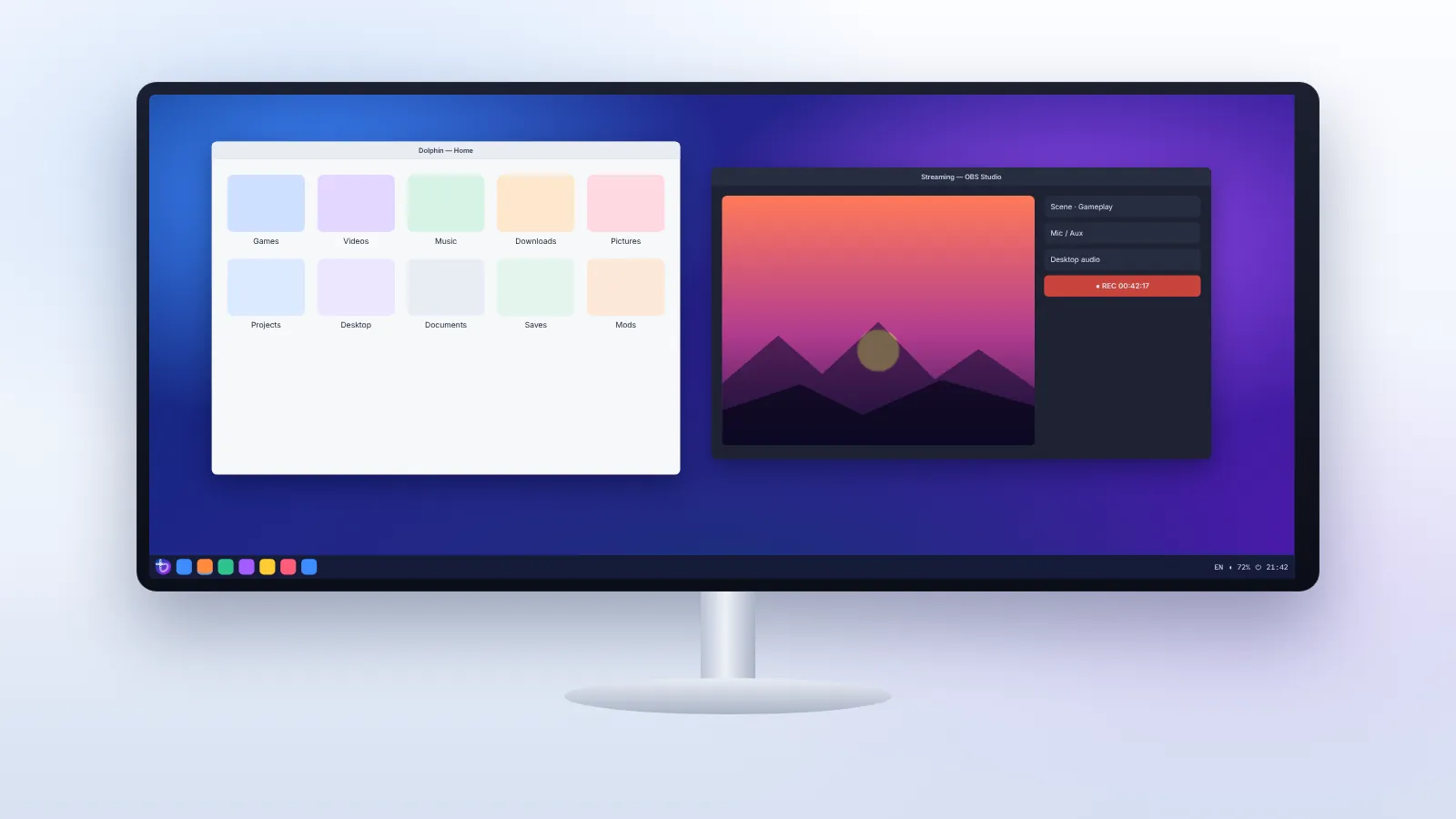
OBS Studio installs from Bazaar, and Bazzite includes OBS VkCapture, which captures Vulkan and OpenGL games directly with low overhead. On AMD, Intel and NVIDIA GPUs, OBS can use hardware encoders where the drivers expose them. For streaming your desktop to another device in the house, Sunshine pairs with Moonlight clients on phones, TVs and other PCs; since Bazzite 44 it is installed through a Homebrew-based ujust recipe rather than shipping in the image.
Running Windows and Android apps
Windows applications
Not every Windows program is a game. Bottles, from Bazaar, manages Wine environments for desktop applications, with presets for common software. Results vary from perfect to unusable depending on the program. For software that refuses to run, a Windows virtual machine is the dependable fallback; the Bazzite DX image includes virtualisation tools ready to use.
Android applications
Waydroid runs Android apps in a container and can be set up from Bazzite Portal. It suits utility apps and some games; apps that depend on Google Play services or strict device checks may not work.
Development and tinkering
If you write code on the same desktop, you have three tools before you even consider DX:
- Distrobox creates Ubuntu, Arch, Fedora or other containers that share your home folder, display and audio. Inside them,
apt,pacmanordnfwork normally. - Homebrew installs command-line tools to your home folder with
brew install. - Podman runs standard containers for databases and services.
Konsole on KDE images can open tabs directly inside your Distrobox containers, which makes switching between environments quick.
Backups and snapshots
Bazzite protects the operating system with image deployments and rollback, but your personal files are your responsibility. Plan two layers:
- File backups. Pika Backup or Déjà Dup from Bazaar back up your home folder to an external drive or network storage on a schedule.
- Btrfs maintenance. Bazzite installs on Btrfs by default. Since Bazzite 45, maintenance tasks such as scrubs and balances are available from the BTRFS Assistant graphical tool.
Steam Cloud covers saves for supported games, but not all games use it, and emulator saves almost never do. Include those folders in your backup.
Keeping the desktop healthy
Bazzite needs very little maintenance compared with a traditional distribution, but a few habits help:
- Restart regularly. Updates apply at boot. A desktop left running for weeks is running an old image.
- Read the changelog before big updates.
ujust changelogsshows what changed between builds, and the project now generates changelogs from its SBOMs. - Avoid layering packages.
rpm-ostree installis a last resort. Each layered package slows updates and can block them when it conflicts with a new base. - Know your rollback options. Choose the previous deployment at boot, use Bazzite Portal's rollback, or run
rpm-ostree rollback. To keep a known-good build permanently, pin it withsudo ostree admin pin 0. - Clean up occasionally. Old Flatpak runtimes and Steam shader caches can grow large. Bazaar and Steam's storage page help reclaim space.
Sharing the desktop with family
A family PC benefits from separate accounts. Each user gets their own home folder, Flatpak apps and Steam login. Steam Family Sharing works as it does on Windows. Parental controls are available in Steam and, on GNOME, at the desktop level. Because the system image is read-only, a curious child cannot break the operating system by installing something odd; the worst case affects only their own account.
What still favours Windows
An honest Bazzite desktop guide should say where Windows remains the easier choice:
- Online games whose anti-cheat does not support Linux.
- Professional software with no Linux version and poor Wine compatibility, such as some Adobe tools.
- Peripherals that rely on Windows-only configuration software with no Linux equivalent.
Many people handle these with a second drive running Windows and dual-boot only when needed. With separate drives, the two systems never interfere with each other.
Performance tuning for desktop GPUs
Desktop hardware has more headroom than a handheld, so tuning is less about saving power and more about consistency. A few adjustments make a visible difference:
- Use the right Proton version. Steam picks a sensible default, but some games run better on Proton Experimental or a specific older release. Change it per game in the compatibility tab rather than globally.
- Watch the frame-time graph, not just FPS. MangoHud's frame-time line shows stutter that an average FPS number hides. Shader compilation, background downloads and an unthrottled browser are the usual culprits.
- Control your GPU on AMD. LACT, which Bazzite Portal can install, exposes power limits, fan curves and clock settings for Radeon cards. Small undervolts often lower temperatures without losing performance.
- Keep NVIDIA settings simple. On NVIDIA images, use the NVIDIA settings tool for basics such as the preferred power mode, and leave advanced tweaks until a specific game needs them.
- Prefer native resolution with upscaling. FSR, XeSS or DLSS in supported games usually beat lowering the desktop resolution.
A sensible weekly routine
Bazzite largely looks after itself, but a light routine keeps a desktop running at its best. Once a week, restart the PC so the latest staged image takes effect; it is the single most useful habit. Open Bazaar to confirm Flatpak updates have finished, and glance at ujust changelogs if you are curious about what changed. Every month or so, check free disk space, clear Steam's download cache if it has grown, and confirm your backup tool has run recently. If anything starts behaving oddly after an update, do not spend an evening debugging: boot the previous deployment, carry on, and check the community forum to see whether a fix is already on its way. That combination of restart, glance and roll back covers nearly every situation a home desktop meets.
Summary
A Bazzite desktop can be a complete, everyday computer. Pick the desktop image for your GPU, update on day one, set your displays properly, and install apps from Bazaar. Give games their own Linux-formatted drive, use Lutris and Heroic alongside Steam, and lean on Bazzite Portal for peripherals, streaming tools and Android support. Back up your files, restart regularly to pick up updates, and keep rollback in mind. The result is a desktop that stays the same quality month after month rather than slowly accumulating problems.
For an overview of the desktops themselves, read the Bazzite UI tour.
Frequently asked questions
Can Bazzite replace Windows on my main PC?
For many people, yes, especially if their games run under Proton and their work happens in a browser or cross-platform apps. Check your must-have games and software first.
Do I need the deck image for Game Mode on a desktop?
No. Desktop images can start a Game Mode session. Choose the deck image only if you want the PC to boot into Game Mode every time, as on a living-room machine.
Will automatic updates restart my PC?
No. Updates download in the background and wait for your next restart. You stay in control of when the new image takes effect.
Is Bazzite good for streaming on Twitch or YouTube?
Yes. OBS Studio from Bazaar plus the bundled OBS VkCapture cover game capture, and hardware encoding works on supported GPUs.