
Quick save · key takeaways
- Deck images boot to Game Mode; desktop images boot to KDE Plasma or GNOME.
- Bazzite 45 ships KDE Plasma 6.8 and GNOME 51.
- Bazzite Portal runs ujust recipes for updates, rollback and optional tools.
- You can rebase between KDE and GNOME without reinstalling.
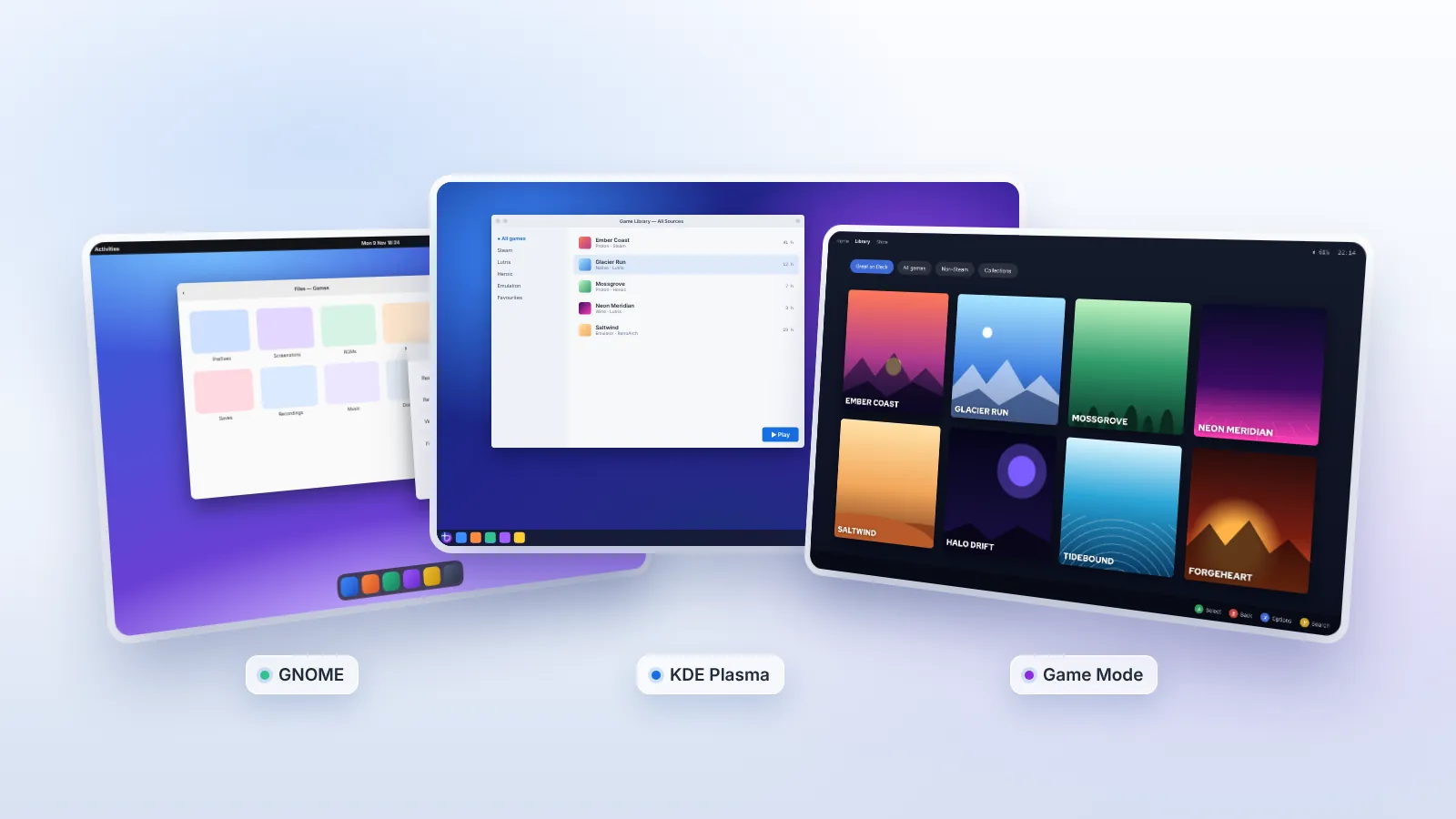
"Bazzite UI" means different things depending on how you use the system. On a handheld, it is the full-screen Steam Game Mode you navigate with a controller. On a desktop, it is KDE Plasma or GNOME, with a taskbar or an Activities overview. Around both sit Bazzite's own tools: the Portal for system tasks and the Bazaar store for apps. This tour walks through every part of the Bazzite interface, how they connect, and the settings worth knowing in each.
Version references are to Bazzite 45, released in November 2026, which ships KDE Plasma 6.8 and GNOME 51 on top of Fedora 45.
A map of the Bazzite interface
It helps to see the pieces before looking at each one:
- Game Mode: Steam's console-style interface running on gamescope. Default on deck images; optional elsewhere.
- KDE Plasma: the default desktop, used by images without "gnome" in their name.
- GNOME: the alternative desktop on the
-gnomeimages. - Bazzite Portal: a graphical front end to system tasks such as updates, rollback, rebasing and optional installs.
- Bazaar: the app store for Flatpak applications.
- Login screen: Plasma Login Manager on KDE images since Bazzite 44, and GDM on GNOME images.
Which one you see first depends on the image. Deck images boot into Game Mode; desktop images boot to the login screen and then the desktop.
Game Mode
Game Mode is the part most people picture when they hear about Bazzite. It is the Steam client in its full-screen, controller-first form, the same interface a Steam Deck uses, running inside gamescope, Valve's compositor designed for games.
Home and library
The home screen shows recently played games, a featured title and news from games you own. The library groups games into collections and filters, including non-Steam titles you have added as shortcuts. Everything is navigable with a controller, and the on-screen keyboard appears when you select a text field.
The Steam menu and quick-access menu
The Steam button opens the main menu: library, store, settings and power options. The quick-access menu, opened with the "…" button on a Deck or its equivalent on other handhelds, is where most of the useful controls live:
- Performance: frame-rate limit, refresh rate on supported screens, thermal power (TDP) limit, GPU clock and the performance overlay level.
- Notifications and friends: messages and invites without leaving the game.
- Quick settings: brightness, Wi-Fi, Bluetooth, airplane mode.
- Plugins: if you installed Decky Loader, its plugin tab appears here.
On Steam Deck these controls come from Valve's integration. On other handhelds, Bazzite connects the same menu to the device's own power and fan controls where Linux support exists, which is a large part of what makes the deck image feel native on non-Valve hardware.
Per-game settings
Each game can have its own compatibility tool (a specific Proton version), launch options, controller layout and performance profile. Bazzite also lets you use the bundled MangoHud overlay for more detailed statistics than Steam's own.
Leaving Game Mode
Choose Switch to Desktop from the power menu to drop into the desktop session. A shortcut on the desktop returns you to Game Mode. On a handheld you will spend most of your time in Game Mode and visit the desktop for file management, non-Steam launchers or system maintenance.
KDE Plasma
KDE Plasma is Bazzite's default desktop, and for anyone coming from Windows it is immediately readable: a panel at the bottom with an application launcher, pinned and running apps, a system tray and a clock.
What stands out in Plasma 6.8
- Wayland by default, with variable refresh rate and HDR controls in display settings on supported hardware.
- Deep customisation: panels, widgets, themes, icons, cursors, window decorations and per-application window rules.
- KRunner: press Alt+Space or start typing on the desktop to search apps, files and settings, run calculations or convert units.
- Konsole: the terminal, which since Bazzite 44 replaces Ptyxis on KDE images and supports opening tabs directly inside containers such as your Distrobox environments.
- Dolphin: the file manager, with split views, tabs and integrated terminal.
Making Plasma your own
Most changes start in System Settings under Colors & Themes. Global themes change everything at once; individual pages let you mix and match. Right-click the panel to add widgets, move it to another screen edge or create a second panel. Because Bazzite keeps your configuration in your home folder, these customisations survive every system update and rollback.
Display and gaming settings
Under Display Configuration, set the refresh rate, scaling and, on supported monitors, adaptive sync and HDR. Multi-monitor arrangements are handled here too. If games stutter on a high-refresh display, confirm adaptive sync is enabled and that you are using a DisplayPort or HDMI connection that supports it.
GNOME
GNOME takes a different approach. Instead of a taskbar, a top bar shows the clock and system menu, and pressing the Super key opens the Activities overview: all open windows, workspaces, a search field and a dash of favourite apps.
Working in GNOME
- Search first. Press Super and type: apps, settings, files and calculations appear instantly.
- Gestures. On a touchpad, three-finger swipes open the overview and move between workspaces, which feels natural on laptops.
- Dynamic workspaces. New workspaces appear as you need them and disappear when empty.
- Clean defaults. GNOME's settings are fewer and clearer, which suits people who want a calm desktop rather than a configurable one.
Bazzite's GNOME additions
Bazzite's GNOME images enable variable refresh rate and fractional scaling under Wayland, include GSConnect for phone integration, and add a curated set of extensions. Extensions can be managed graphically, and Bazzite includes tools for that. GNOME 51 in Bazzite 45 also restored the logo menu translations and accent colours in the welcome flow.
KDE or GNOME: choosing well
| If you… | Consider |
|---|---|
| Are moving from Windows and want a familiar layout | KDE Plasma |
| Use several monitors and like configuring everything | KDE Plasma |
| Work mostly on a laptop touchpad | GNOME |
| Prefer keyboard-driven search and few distractions | GNOME |
| Use a handheld and only visit the desktop occasionally | Either; KDE is the default |
The choice is not permanent. Bazzite Portal's rebase action, or rpm-ostree rebase, switches to the other desktop's image without reinstalling. Your files stay; desktop-specific settings start fresh.
Bazzite Portal
Bazzite Portal is the part of the interface that is unique to Bazzite. It is a configuration tool that runs ujust recipes behind friendly buttons, organised into six sections:
- Welcome: the first-run flow and quick links.
- Install Applications: optional tools such as Decky Loader, OpenRGB and Waydroid, and Homebrew apps from the Universal Blue tap.
- Media Applications: web apps for streaming services and media tools.
- Manage Bazzite: update the image, Flatpaks, firmware and Homebrew in one pass; rebase to another variant; reset to defaults.
- Tweak Systems: system-level options exposed as toggles.
- Troubleshoot: gather logs for support, roll back an update or reset configuration.
If you prefer the terminal, run ujust with no arguments to list the same recipes. Portal is simply the most approachable way to reach them, especially in Game Mode-centric setups where you rarely open a terminal.
Bazaar app store
Bazaar is Bazzite's default storefront for Flatpak applications from Flathub. It loads quickly, shows clear app pages with screenshots and permissions, and handles updates. Apps installed from Bazaar can be updated without rebooting, separately from the system image. For fine-grained control over each app's permissions, Flatseal is included.
Gaming-related Flatpaks such as Heroic Games Launcher, Bottles, emulators and Discord install from Bazaar like any other app. To make them appear in Game Mode, add them to Steam as non-Steam games from the desktop.
Controllers and input across the UI
Controllers work in both modes. In Game Mode, Steam Input handles everything. On the desktop, Steam Input applies while Steam is running, and Bazzite's handheld images use InputPlumber to present built-in controls as a standard controller. For remapping keyboard and mouse devices, Input Remapper is included. Since Bazzite 45, an extest update also lets the 64-bit Steam client's input work properly under Wayland.
Interface tips worth knowing
- Screenshots in Game Mode are taken with Steam + R1 on a Deck layout and appear in your Steam media library.
- Recording gameplay: OBS Studio from Bazaar, together with the bundled OBS VkCapture, captures Vulkan and OpenGL games efficiently.
- Performance overlay on the desktop: launch a game with the
mangohudlaunch option in Steam's game properties. - Finding system commands:
ujustlists Bazzite's maintenance tasks, so you rarely need to search the web for long commands. - Keeping the desktop tidy on a handheld: larger scaling in display settings makes desktop mode much more usable on a 7 or 8-inch screen.
Accessibility in the Bazzite UI
Both desktops include accessibility features worth knowing about. KDE Plasma and GNOME offer screen magnification, high-contrast themes, larger text, sticky and slow keys, and a screen reader (Orca). Display scaling makes everything larger at once, which helps on high-resolution monitors and small handheld screens alike. In Game Mode, Steam provides its own options for UI scaling, a high-contrast mode and reduced motion, and Steam Input can remap controls for players who need a different layout, including mapping actions to fewer buttons. Because these settings live in your home folder and Steam profile, they persist across every system update.
Customising Game Mode
Game Mode itself is Steam's interface, so its layout is not something Bazzite redesigns. You can still make it your own. Collections let you group games by genre, mood or launcher, and dynamic collections update automatically based on filters such as tags or Deck compatibility. Custom artwork for non-Steam games, from community sources or your own images, keeps the library looking consistent. With Decky Loader installed, plugins add features such as per-game sound profiles, extra performance controls or alternative themes; install only plugins from sources you trust, since they run with access to your Steam session. If a plugin misbehaves after a Steam update, disable it from Decky's menu before blaming the system.
Your first week with the interface
New users settle in fastest by giving each part of the interface a clear job. Use Game Mode for playing, even on a desktop image, because its controller navigation and per-game profiles are designed for it. Use the desktop for everything with a keyboard: browsing, files, launchers and chat. Open Bazzite Portal once a week to see whether anything needs attention, and treat Bazaar as the first stop for any new app. After a week, most people stop thinking about which mode they are in, which is the point. The interface should fade into the background and leave the games and apps in front.
Summary
The Bazzite UI is really three interfaces sharing one system. Game Mode delivers the console experience on handhelds and TVs. KDE Plasma and GNOME provide full desktops, one built for flexibility and one for focus. Bazzite Portal and Bazaar sit across both, turning system maintenance and app installation into a few clicks. Pick the image whose default fits how you use your machine; you can always rebase to another later.
Next, read the Bazzite desktop guide for daily-driver setup, or the Bazzite handheld guide for portable devices.
Frequently asked questions
Can I use Game Mode on a desktop image?
Yes. Desktop images can run a Steam Game Mode session; deck images simply boot into it by default. The deck images are better suited if you want a console-like experience every time you power on.
Does Bazzite look like Windows?
KDE Plasma's default layout is familiar to Windows users, with a launcher, taskbar and system tray at the bottom. It is not a Windows clone, but the learning curve is gentle.
Can I install another desktop environment?
Bazzite officially ships KDE Plasma and GNOME images. Layering a different desktop onto the image is possible but unsupported and tends to cause conflicts; use the images as intended.
Where are Bazzite's system settings?
Desktop settings live in each desktop's own Settings app. Bazzite-specific tasks such as updates, rollback and optional tools live in Bazzite Portal or the ujust command.